
How to Bulk Mark Payments as Paid?
Marketcube provides an efficient way for Operators to manage large volumes of vendor payouts. Instead of selecting invoices one by one, you can export a report, filter the necessary data, and upload a CSV file to mark multiple vendors as paid simultaneously.
This article guides you through the process of exporting the report, preparing your file, and performing the bulk update.
Prerequisites:
- You must be logged into your Marketcube Operator account.
- Vendors must have generated invoices/orders that are currently in the Due status and the order must be accepted by either the Operator or the Vendors.
Steps to Bulk Mark Payments as Paid:
- Log in to the Operator App.
- Download the Consolidated Report:
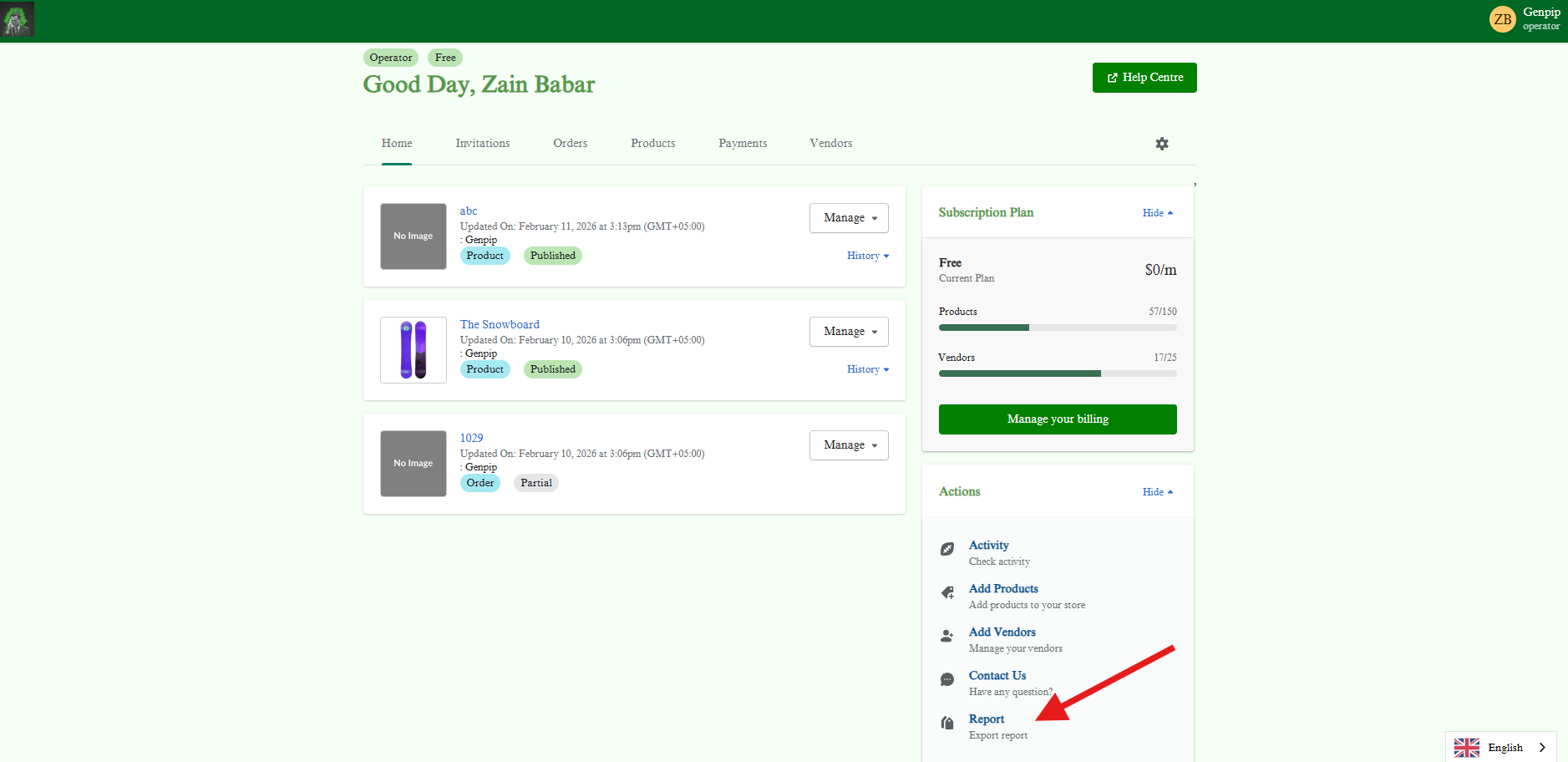
- From the dashboard home page, look at the right-side panel under Actions.
-
Click on Report (Export report).
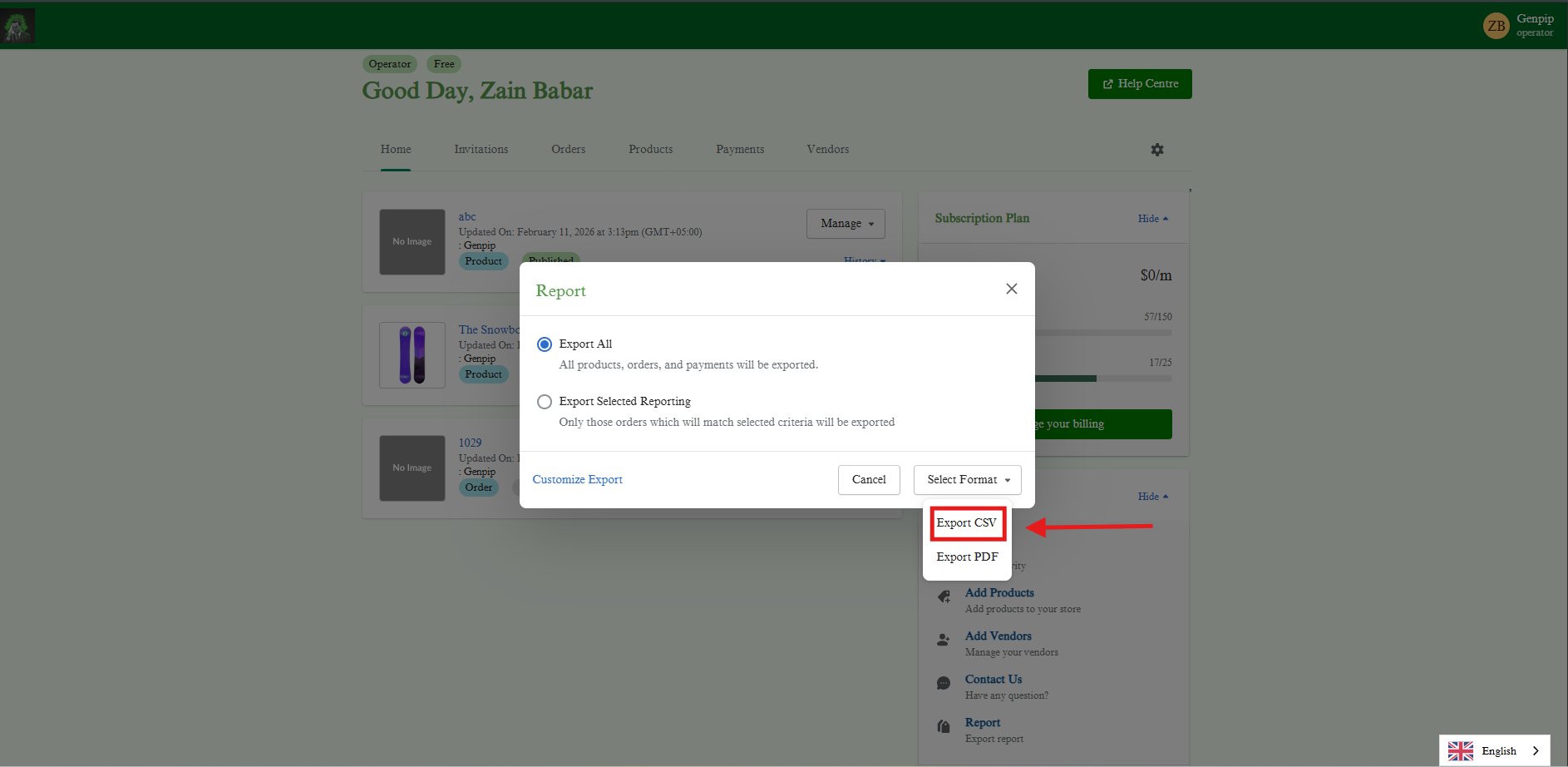
- In the popup window, select Export All or Export Selected Reporting based on your needs.
-
Click Generate and select Export CSV.
- Prepare the CSV File:
- Open the downloaded CSV file (e.g., Consolidated report).
- Locate the column labeled Vendor Payment Status.
- Identify the rows where the status is Unpaid .
- Delete all rows that do not match these criteria. Your final list should only contain rows the Payment Status is "Unpaid."
- Ensure you keep the header row (the first row with column names) intact.
- Once you have removed the unwanted data, save the file.
- Important: Ensure you save the file in .CSV (Comma Separated Values) format. The system may not accept
.xlsxor other file types.
- Navigate to Payments:
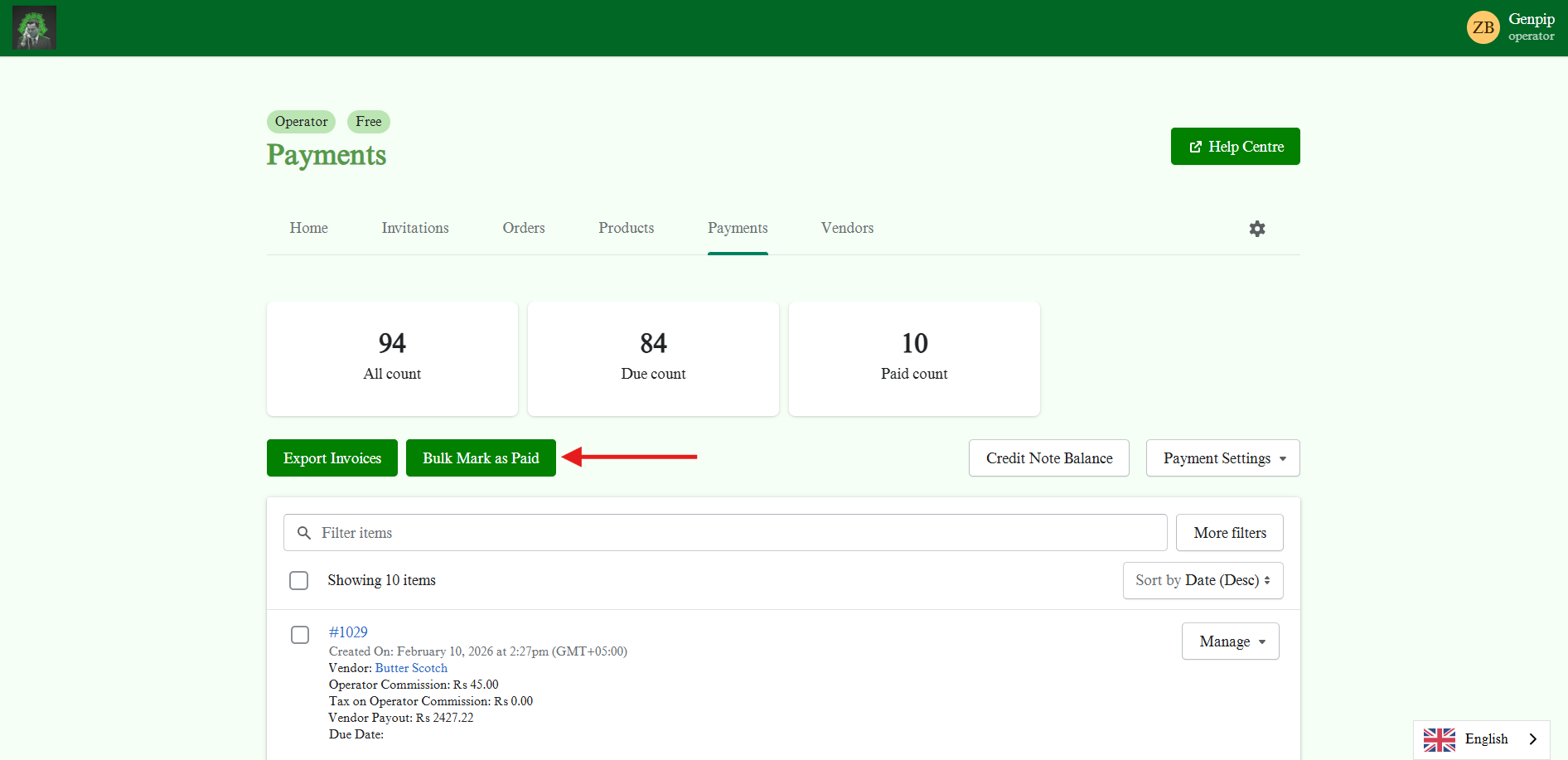
- Click on the Payments tab on the top navigation bar.
- Click the green Bulk Mark as Paid button located above the invoices list.
- Upload the CSV:
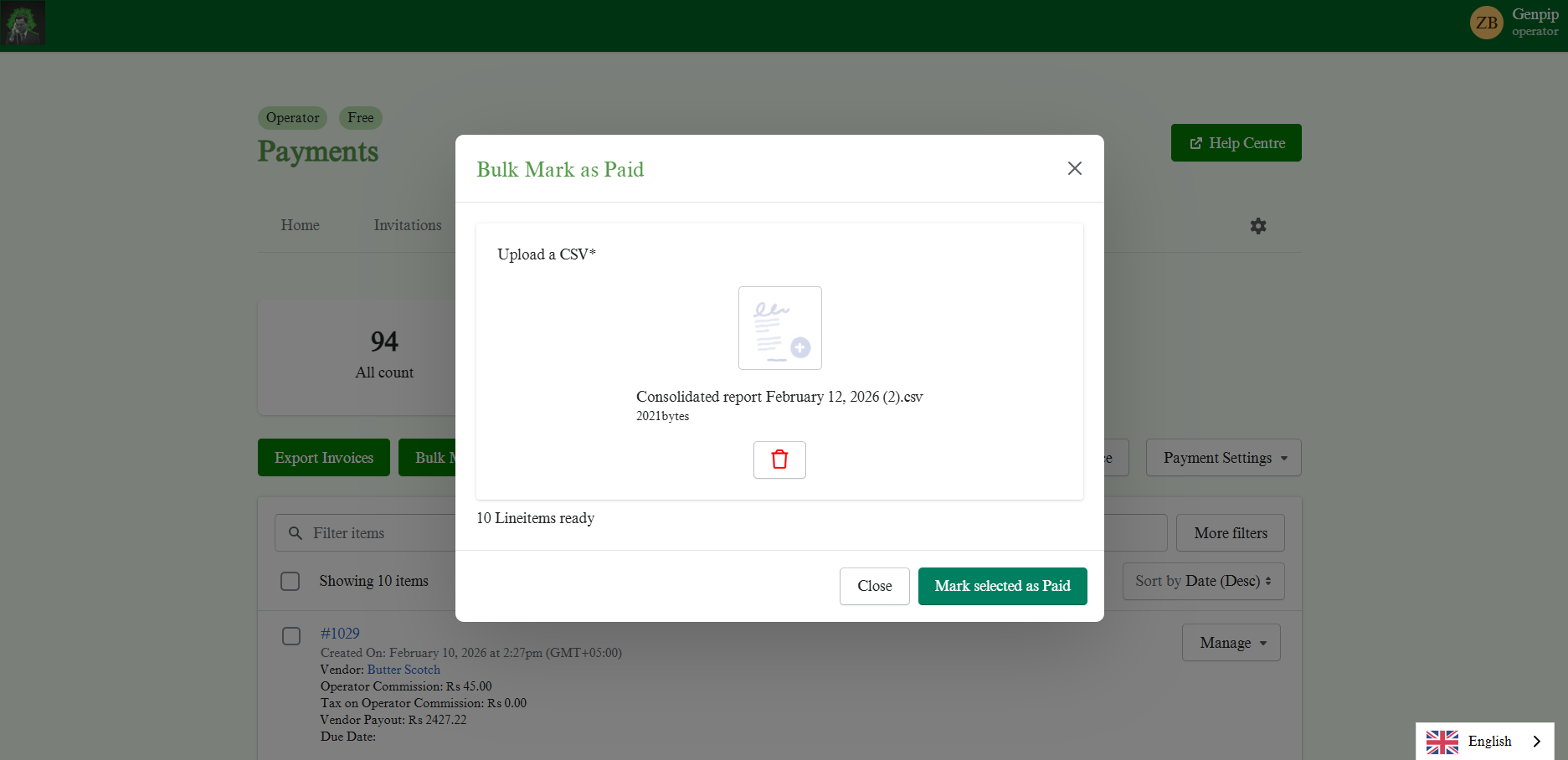
- A popup window titled "Bulk Mark as Paid" will appear.
- Click Add file or drag and drop your prepared CSV file into the box.
- Confirm the Update:
- Once the file is uploaded, the system will show how many line items are ready to be processed.
- Click the Mark selected as Paid button to finalize the action.
- Verify Status:
- The system will process the file, and the count for the relevant invoices will move from Due to Paid.
- You can verify this by searching for the specific vendors or orders in the Payments tab.